
If you’re searching for ways to gain a real competitive edge, chances are you’ve realized that even milliseconds matter. Whether you’re grinding ranked matches or competing in high-stakes esports environments, reducing delay between your input and on-screen action can dramatically impact performance. That’s why this guide focuses specifically on reducing input lag in gaming—breaking down what actually works, what’s just marketing hype, and how to optimize your setup for faster, more responsive gameplay.
We’ll explore the mechanics behind input latency, from hardware limitations and display response times to in-game settings and network factors. Our insights are built on hands-on testing, technical analysis of gaming peripherals and displays, and industry-backed performance data to ensure accuracy and relevance.
By the end of this article, you’ll understand exactly where input lag comes from, how to measure it, and the practical steps you can take to minimize it—so every click, flick, and keystroke registers exactly when it should.
The Unseen Enemy: How Input Lag Robs You of Victory
Input lag is the delay between pressing a button and seeing the action happen on-screen. Sounds harmless. It isn’t.
In competitive games, milliseconds decide everything. A 20ms delay in a shooter versus 5ms on a setup can mean landing the shot—or watching the kill cam (painful, right?).
So what’s the difference? TV vs gaming monitor. Wireless vs wired controller. V-Sync on vs off. Each choice stacks delay or strips it away.
This guide breaks down identifying and reducing input lag in gaming, step by step, so action feels instant.
Decoding the Delay: What Is Input Lag and Where Does It Hide?
Press a button. Your character jumps. Simple—except there’s a whole chain in between. First, your mouse or controller sends a signal. Next, your PC or console processes that command. Finally, your display shows the result. Input lag is the total delay between your action and what appears on screen.
Now, let’s clarify terms. Input lag is that end-to-end delay. Network latency (ping) is the time data takes to travel to a game server and back (measured in milliseconds). System latency covers internal processing time inside your device. Fixing your ping won’t reduce display lag, and buying a faster monitor won’t solve bad Wi‑Fi (nice try).
So where does delay hide? Peripheral processing, system processing, and display lag are the main culprits.
To start reducing input lag in gaming, plug in wired peripherals, enable your monitor’s “Game Mode,” and cap background apps. Think of it like tuning a race car—every millisecond counts.
Your First Line of Defense: Hardware Fixes for Instant Response

If your game feels “off,” I’ll say it bluntly: it’s probably your hardware. Before blaming your reflexes, start with the gear.
Peripherals: Polling Rate and Connection Type
Your mouse, keyboard, or controller reports inputs to your PC at a set polling rate (how often it sends data per second). A 1000Hz polling rate means 1,000 updates per second—effectively every 1ms. Lower rates? Slower feedback.
Some argue wireless tech is “basically the same now.” And yes, modern wireless has improved. But in competitive play, wired still wins for consistency and lower latency. No interference. No battery anxiety. Just signal.
What to check:
- 1000Hz+ polling rate
- Wired connection when possible
- Manufacturer software set to max performance mode
(Pro tip: Don’t assume it’s set to 1000Hz out of the box. It often isn’t.)
Display: Refresh Rate and Response Time
Next, your display. Two specs matter most:
- Refresh Rate (Hz): How many times per second your screen updates. 144Hz or 240Hz feels dramatically smoother than 60Hz.
- Response Time (ms): How quickly pixels change color. Lower (1ms–5ms) reduces motion blur and ghosting.
Some players say “60Hz is fine.” Sure—for casual play. But once you try higher refresh rates, going back feels like watching an action scene with missing frames.
The “Game Mode” Secret
Here’s the big one. TVs and many monitors add image processing (sharpening, smoothing, color tweaks). It looks pretty—but adds delay. Turn on Game Mode to bypass it. This alone can massively impact reducing input lag in gaming.
Cables and Connections
Finally, use high-quality HDMI or DisplayPort cables and plug directly into your graphics card—not the motherboard.
And if you’re serious, read more on how to optimize your gaming setup for maximum performance. Because in competitive gaming, milliseconds decide everything.
In-Game and System Tweaks: The Software Side of Responsiveness
First, let’s tackle the classic debate: V-Sync. Short for vertical synchronization, V-Sync forces your GPU to match your monitor’s refresh rate to prevent screen tearing (that ugly horizontal split that makes your game look like a glitchy VHS tape). Sounds great—until you feel the delay. V-Sync often adds noticeable input lag because your system waits for the next refresh cycle before displaying frames. My recommendation? Disable it, especially in competitive titles.
So what’s better? G-Sync (NVIDIA) and FreeSync (AMD). These are adaptive sync technologies, meaning your monitor dynamically matches your GPU’s frame output. The result: smoother visuals without the heavy lag penalty. If your monitor supports one of these, turn it on in both your monitor settings and GPU control panel. It’s one of the smartest moves for reducing input lag in gaming.
Next, open your graphics driver settings. On NVIDIA, enable Low Latency Mode (set it to “On” or “Ultra”). On AMD, toggle Anti-Lag. Both features limit how many frames your CPU queues ahead of your GPU—fewer queued frames means faster on-screen reactions.
Inside your game, prioritize exclusive fullscreen mode (not borderless), disable motion blur (it’s cinematic but muddies clarity), and reduce pre-rendered frames if the option exists.
For more hardware-side tweaks, check out https://scookiegeek.com/gear-optimization.
Bottom line: small software changes can mean the difference between “almost” and clutch.
Advanced Tactics: OS-Level and Niche Optimizations
Most guides stop at “update your drivers.” That’s table stakes. Let’s go deeper.
Windows Optimizations That Actually Matter
First, disable Enhance Pointer Precision (Windows mouse acceleration). It dynamically alters cursor speed based on movement velocity—great for spreadsheets, terrible for muscle memory. Competitive aim relies on 1:1 input consistency.
Switch to the High Performance power plan to prevent CPU downclocking during intense scenes. Modern CPUs boost aggressively, but inconsistent power states can introduce micro-latency spikes (the kind you feel but can’t explain).
For specific game executables, disable Fullscreen Optimizations. Windows’ hybrid fullscreen can add a compositing layer—small delay, measurable impact.
The Role of FPS in Latency
Higher FPS reduces frame time (the time it takes to render one frame). At 60 FPS, frame time is ~16.6ms; at 240 FPS, it’s ~4.2ms. Lower frame time = lower system latency. Uncap FPS when thermals allow—it often improves responsiveness even beyond your monitor’s refresh rate.
Measuring Your Lag
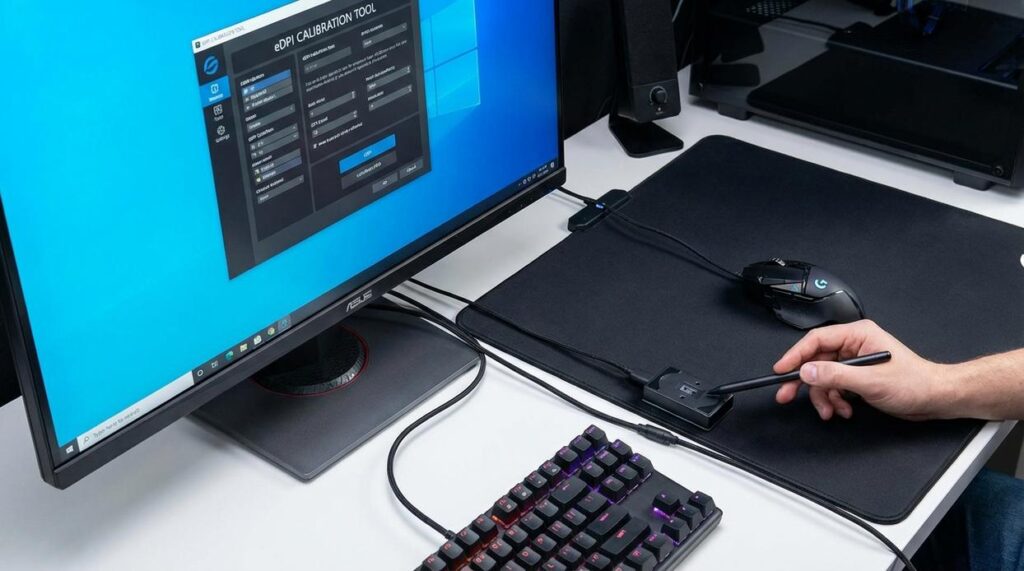
Serious about reducing input lag in gaming? Use tools like NVIDIA Reflex Analyzer hardware or 1000fps high-speed camera testing to quantify click-to-pixel delay. What gets measured gets optimized.
Final Thoughts
Minimizing input lag isn’t one magic toggle; it’s a chain reaction. If one link is slow, everything feels off. I’ve felt that split-second disconnect, and it’s INFURIATING. That tiny delay between click and action can ruin a match.
That’s why reducing input lag in gaming demands a holistic approach. Tune your mouse polling rate, update drivers, enable low-latency modes, and match refresh rates.
- Start with your display settings tonight and test the difference.
Trust me, you’ll FEEL it. Once you experience true responsiveness, there’s no going back to sluggish defaults. Small tweaks create BIG competitive advantages. Over time.
Level Up Your Edge
You came here to understand how to sharpen your competitive edge and eliminate the small performance gaps holding you back. Now you know how hardware tweaks, smarter settings, and optimized setups directly impact responsiveness, precision, and overall gameplay consistency.
The truth is, even the best strategy falls apart if your system can’t keep up. Lag spikes, delayed inputs, and unoptimized gear create frustration—and in competitive play, frustration turns into losses. Prioritizing reducing input lag in gaming isn’t just a technical upgrade; it’s the difference between reacting and dominating.
Now it’s your move.
Audit your setup. Fine-tune your display and peripheral settings. Upgrade weak links in your chain. If you’re serious about climbing ranks and gaining a real mechanical advantage, start applying these optimizations today.
Don’t let milliseconds cost you matches. Take control of your performance now and turn every click, press, and flick into a competitive advantage.
 Lead Gaming Analyst & Content Strategist
Ask Williem Puckettiero how they got into scookie gaming mechanics deep dive and you'll probably get a longer answer than you expected. The short version: Williem started doing it, got genuinely hooked, and at some point realized they had accumulated enough hard-won knowledge that it would be a waste not to share it. So they started writing.
What makes Williem worth reading is that they skips the obvious stuff. Nobody needs another surface-level take on Scookie Gaming Mechanics Deep Dive, Insider Knowledge, Gamer Gear Optimization Tips. What readers actually want is the nuance — the part that only becomes clear after you've made a few mistakes and figured out why. That's the territory Williem operates in. The writing is direct, occasionally blunt, and always built around what's actually true rather than what sounds good in an article. They has little patience for filler, which means they's pieces tend to be denser with real information than the average post on the same subject.
Williem doesn't write to impress anyone. They writes because they has things to say that they genuinely thinks people should hear. That motivation — basic as it sounds — produces something noticeably different from content written for clicks or word count. Readers pick up on it. The comments on Williem's work tend to reflect that.
Lead Gaming Analyst & Content Strategist
Ask Williem Puckettiero how they got into scookie gaming mechanics deep dive and you'll probably get a longer answer than you expected. The short version: Williem started doing it, got genuinely hooked, and at some point realized they had accumulated enough hard-won knowledge that it would be a waste not to share it. So they started writing.
What makes Williem worth reading is that they skips the obvious stuff. Nobody needs another surface-level take on Scookie Gaming Mechanics Deep Dive, Insider Knowledge, Gamer Gear Optimization Tips. What readers actually want is the nuance — the part that only becomes clear after you've made a few mistakes and figured out why. That's the territory Williem operates in. The writing is direct, occasionally blunt, and always built around what's actually true rather than what sounds good in an article. They has little patience for filler, which means they's pieces tend to be denser with real information than the average post on the same subject.
Williem doesn't write to impress anyone. They writes because they has things to say that they genuinely thinks people should hear. That motivation — basic as it sounds — produces something noticeably different from content written for clicks or word count. Readers pick up on it. The comments on Williem's work tend to reflect that.